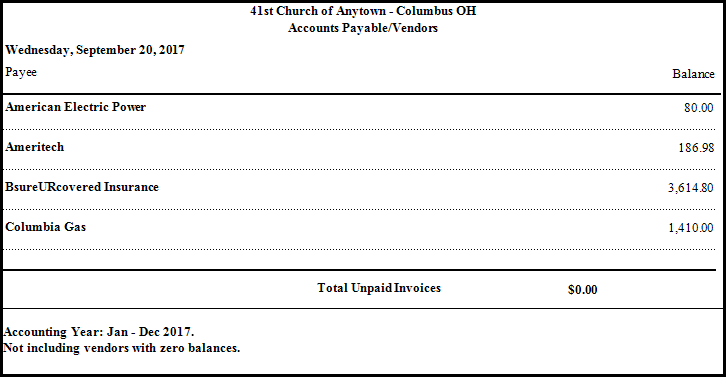
Accounts Payable Report
The Accounts Payable reports allow you to view information about invoices or bills that have been entered into the software, but have not yet been paid. You might find these reports most useful if you or your organization is accustomed to entering at least some of the invoices on one date, and then paying them on a different date. If so, the Accounts Payable reports might give you a helpful understanding of which bills need attention, and then allow you to make your own decision on what is to be done with them.
To view or print the Accounts Payable Report:
- Click Reports/Export in the Button Bar at the top of the screen.
- Click the Worksheets button and a menu will show the option for Accounts Payable.
- Click the Accounts Payable option.
- Accounting Year —
Choose the desired year from the dropdown box. - Report Type —
- Accounts Payable List:
Shows a complete list of vendors / payees and their balances. If you place a checkmark in the Show Unpaid Invoices box, the list will also show the invoices. If you place a checkmark in the Include Vendors With Zero Balance box, the list will show invoices for vendors that owe your organization $0.00.
 - Aging Report:
Shows how much time has passed since the due date of invoices that have not yet been paid. - Show Payments Due By:
Shows all the invoices due by the specific date. Specify the date by clicking the dropdown box next to this option and selecting the date. - Accounts Payable Journal:
Shows all transactions that have been recorded for a specific Vendor / Payee. Specify the vendor / payee by clicking the name from the dropdown box.Note:
On the Enter Bills screen, a field called Due Date allows you to specify a date by which the bill is due. If no date was entered in the Due Date field, the bill will not appear on the reports shown on both the Aging Report and Show Payments Due By selections. To show these bills, you must choose either the Accounts Payable List, or the Accounts Payable Journal and the additional options that are specific to the bills for which you are searching. - Choose any of the following tabs to apply additional settings:

Check the Visible Columns list on the to see which columns are set to display.
Change the size and style of the font that prints on the report.
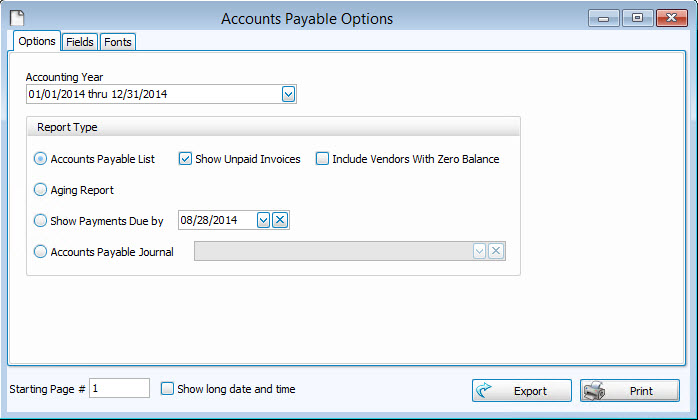
Once you have made all of your selections, click Print to view a Print Preview and then proceed in sending the file to your printer. You can also Export most reports and/or Send via Email as a file to be used outside of Church Windows.